If you’ve spent any time working with JavaScript, you know that arrays are the bedrock of data handling. But for too long, many developers have relied on the verbose for loop to process array data.
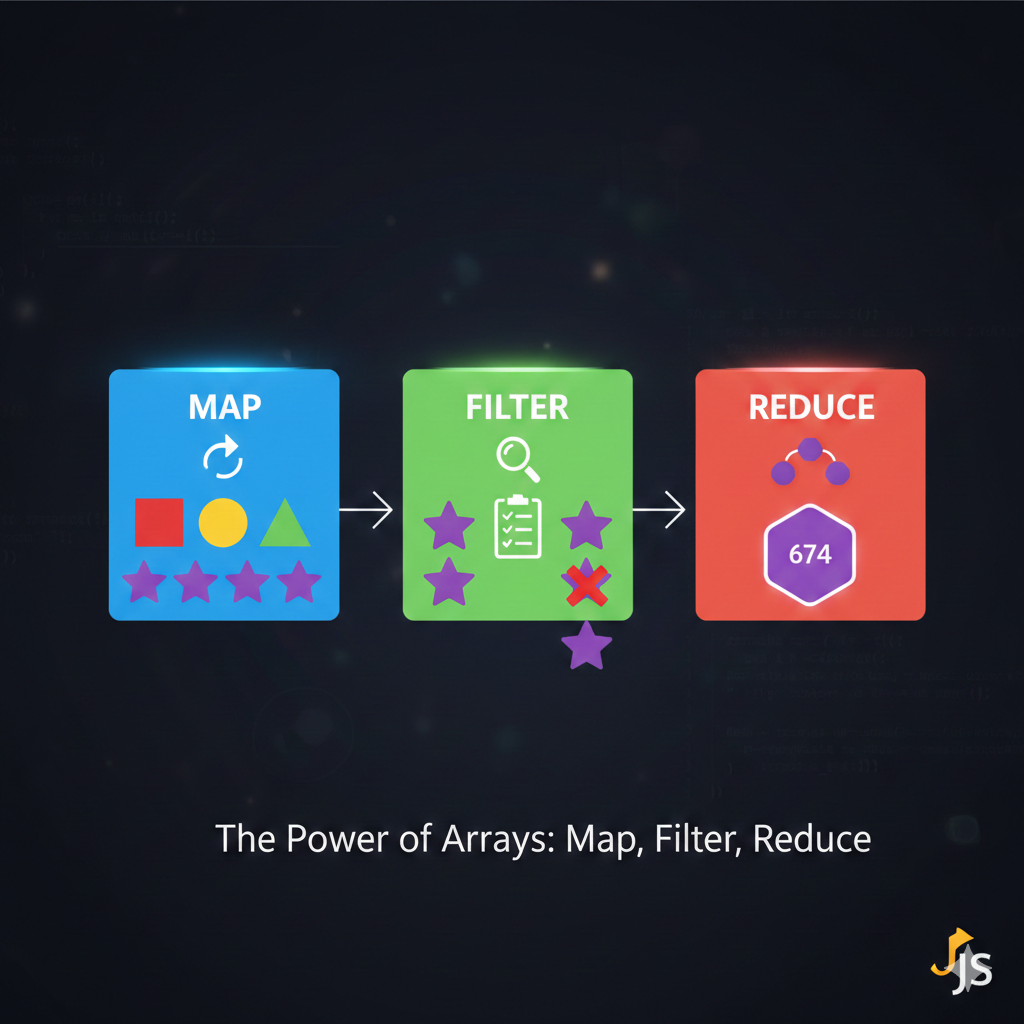
Modern JavaScript offers a much cleaner, more expressive, and more powerful way to transform data: the trio of higher-order array methods: map(), filter(), and reduce().
Mastering these methods is a key step toward writing more functional, readable, and professional JavaScript code.
1. The Setup: What Are Higher-Order Functions?
Before we dive in, let’s understand why these methods are so special.
A higher-order function is simply a function that does one (or both) of the following:
-
Takes one or more functions as arguments (the callback function).
-
Returns a function as its result.
map, filter, and reduce are all higher-order array functions because they take a callback function (a function you write) and apply it to every element in the array.
2. 🗺️ Map: The Transformer
The map() method is your tool for transformation. Its job is to take an array, perform an operation on every element, and return a new array of the exact same length.
Key takeaway: map() always returns a new array with the same number of elements.
The Use Case
Use map() when you want to convert an array of one type of data into an array of another type of data.
Example: Converting Prices
Imagine you have an array of product prices and you need to calculate the price including a 10% sales tax.
const originalPrices = [100, 25, 499, 50];

const pricesWithTax = originalPrices.map(price => {
  const tax = price * 0.10;
  return price + tax;
});

console.log(pricesWithTax);
// Output: [110, 27.5, 548.9, 55]
⚙️ How it Works
The callback function inside map() takes three arguments (though you rarely use more than the first two):
-
element: The current element being processed. -
index: The index of the current element. -
array: The arraymapwas called upon.
3. ✂️ Filter: The Selector
The filter() method is your tool for selection. Its job is to look at every element in an array and decide whether to keep it or discard it. It returns a new array containing only the elements that meet a specified condition.
Key takeaway: filter() returns a new array that is the same length or shorter than the original.
The Use Case
Use filter() when you need to narrow down a list based on a logical test.
Example: Finding High-Rated Books
If you have an array of book objects and you only want to see the ones with a rating of 4.5 or higher:
JavaScript:
const books = [
  { title: 'Book A', rating: 4.8 },
  { title: 'Book B', rating: 3.2 },
  { title: 'Book C', rating: 4.6 }
];

const highRatedBooks = books.filter(book => {
  return book.rating >= 4.5;
});

console.log(highRatedBooks);
/*
Output: [
  { title: 'Book A', rating: 4.8 },
  { title: 'Book C', rating: 4.6 }
]
*/
⚙️ How it Works
The callback function inside filter() must return a Boolean value (true or false).
-
If the callback returns
true, the element is kept in the new array. -
If the callback returns
false, the element is discarded.
4. 🧮 Reduce: The Aggregator
The reduce() method is the most versatile and often the most confusing of the trio. Its job is to take an array and reduce it down to a single value. This value could be a number, a string, an object, or even another array.
Key takeaway: reduce() consolidates the entire array into a single result.
The Use Case
Use reduce() when you need to calculate a sum, count items, or flatten a complex array structure.
Example: Calculating a Total Sum
To find the grand total of the prices in an array:
JavaScript:
const prices = [100, 25, 499, 50];

const totalSum = prices.reduce((accumulator, currentValue) => {
  return accumulator + currentValue;
}, 0); // <-- The initial value for the accumulator

console.log(totalSum);
// Output: 674
⚙️ How it Works
The reduce() callback takes two crucial arguments:
-
accumulator: This is the running total or the value returned from the previous call to the function. -
currentValue: The current element being processed.
It also takes an optional second argument outside the callback: the initial value. This is the starting value of the accumulator. In the example above, we started the sum at 0.
5. 🤯 Chaining the Power
The real magic happens when you chain these methods together. Because map() and filter() both return new arrays, you can call another array method immediately after them.
Example: Filtering, then Mapping
Let’s combine our previous examples: Find the high-rated books (filter), and then just get an array of their titles (map).
JavaScript:
const books = [
  { title: 'Book A', rating: 4.8 },
  { title: 'Book B', rating: 3.2 },
  { title: 'Book C', rating: 4.6 }
];

const highRatedTitles = books
  .filter(book => book.rating >= 4.5) // Step 1: Filter
  .map(book => book.title);          // Step 2: Map

console.log(highRatedTitles);
// Output: ["Book A", "Book C"]
Conclusion
The map, filter, and reduce methods move you away from error-prone, index-based for loops and into the world of functional programming.
They make your code more:
-
Readable: The function’s purpose is clear from the method name (
maptransforms,filterselects). -
Maintainable: You are not manually managing loop counters or creating empty arrays, which reduces potential bugs.
Start integrating these three methods into your daily coding, and you’ll find yourself writing faster, cleaner, and more expressive JavaScript!
Useful links below:
Let me & my team build you a money making website/blog for your business https://bit.ly/tnrwebsite_service
Get Bluehost hosting for as little as $1.99/month (save 75%)…https://bit.ly/3C1fZd2
Best email marketing automation solution on the market! http://www.aweber.com/?373860
Build high converting sales funnels with a few simple clicks of your mouse! https://bit.ly/484YV29
Join my Patreon for one-on-one coaching and help with your coding…https://www.patreon.com/c/TyronneRatcliff
Buy me a coffee  https://buymeacoffee.com/tyronneratcliff